
How to Request a ThriveCart Subdomain Change
Your ThriveCart subdomain is more than just part of your checkout URL, it’s how customers, affiliates, and integrations connect with your brand online. If your business name or structure has changed, this ThriveCart subdomain change guide explains exactly how to update your account domain name safely. Learn what to expect, how to avoid link disruptions, and the steps required to request a subdomain update while keeping your checkout and course pages running smoothly.
When first creating your ThriveCart account, you would have had to choose an account name to use for your domain.
This account name makes up part of your ThriveCart-hosted checkout URLs and is displayed to customers in the address bar when visiting your checkouts, accessing your customer hub, and is the default URL for Learn course content.
This account name would be used alongside the default thrivecart.com domain and a default checkout link would be formatted like so: myaccount.thrivecart.com/product-name, where “myaccount” is your account name and subdomain.
Things to consider when changing your subdomain:
Changing your subdomain is not restricted to an account type or plan, and any ThriveCart account owner can request this once they’ve reviewed and considered the below warnings.
Some users may want to change their domain for several reasons, including:
- Change of business name
- Wanting to use a more generic-sounding domain when using your account for multiple brands/businesses
Reviewing this subdomain management guide in full is critical to understanding the implications this change can have on your account, which are:
– It will break any existing links to your hosted checkout URLs: once you change your ThriveCart URL and links, you will need to update any links to your checkout pages.
– It will break any existing links to your Learn Student area: if you’re using the hosted domain for your courses, this will change and previously sent emails/links will no longer work as they’ll be pointing to your old domain – you’ll need to update links to your login pages from your website and/or update your customers via email of the new login page)
– It will break any affiliate links your affiliates have shared: as above, the affiliate links include your original account name so your affiliates will need to update their links.
– Embeddable carts will stop functioning: your account name is referenced in the embed code and this will no longer be valid so they will need updating.
– Any Zapier integrations will no longer work: as this is integrated with your account and you’ll need to update the Zapier integration within Zapier.
How to request the change of your subdomain:
All requests for changing your subdomain need to get sent directly to support@thrivecart.com directly and not via the support form.
- They need to be sent directly from your account’s primary login email.
- You need to include a copy of your ThriveCart receipt. (We understand that you may no longer have this on file, so you can head here: https://checkout.thrivecart.com/updateinfo/ and enter in your purchasing email, where you can then access our customer hub and download invoices for any ThriveCart purchases that you’ve placed.)
- You need to include your support code (found at the bottom of your account profile).
- You must also confirm you’ve read this article and are aware of the implications.
- You need to confirm your current subdomain and the new domain you want to change to.
Choosing your new subdomain
A ThriveCart subdomain needs to be a minimum of 3 characters long and a maximum of 30. It may contain letters, numbers and hyphens.
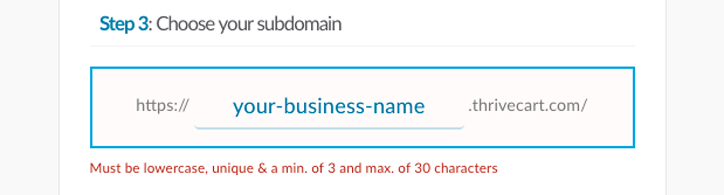
The domain you wish to change to needs to be available and unique within the platform, and there is a quick test you can do to check this. To see if your desired account name is available, do the following:
- Sign out of your ThriveCart account
- Visit xxx.thrivecart.com Replace ‘xxx’ with your desired subdomain.
If you are redirected to:
- A login page, then this subdomain is not available.
- The ThriveCart home page, then this subdomain is likely* available.
Some domains are reserved internally, but we will confirm in support if your chosen domain cannot be used.
We look to process subdomain changes within 24 working hours of being submitted (providing they contain all the required information).
Frequently Asked Questions (FAQs)
-
Will changing my subdomain affect my custom domain?
No, your custom domain will still always be used for customer-facing checkouts. You can see more on connecting and troubleshooting a custom domain (used to replace the thrivecart.com mention) in this guide: Using a custom domain for your account
-
It looks like my copyrighted brand name is taken, how can I claim that subdomain?
We do not check for copyrights on subdomains set as part of ThriveCart account creation. You’ll want to choose an alternative, but you will then be able to connect your owned custom domain to use in checkouts.
-
Why do my affiliate links always include this subdomain?
This subdomain is required as part of the affiliate link (instead of your custom domain) in order to ensure that the referring affiliate is applied to the transaction. You could always set a redirect in your affiliate settings if you wish for affiliate referrals to direct to a custom landing page or sales page.